


You get one link in your Instagram bio. One link on TikTok. One link on X.
For a blogger, creator, or small business owner who’s trying to send people to your latest post, your products, your newsletter, and your services all at once — that’s a problem.
That’s why the “link in bio” page exists. And if you haven’t set one up yet, or you’re still relying on a third-party tool like Linktree to host yours, this post is for you.
I’m going to make the case that building your own bio links page — on your own website — is almost always the better move. And I’ll give you free Divi templates to make it easy to do exactly that.
What Is a Bio Links Page (and Why You Need One)
A bio links page — sometimes called a “link in bio” page — is a simple webpage that collects your most important links in one place. It’s designed to sit behind that single bio link on Instagram, TikTok, X, YouTube, LinkedIn, or wherever your audience finds you.
The concept took off with Instagram, where you still can’t add clickable links to individual posts. But it’s expanded far beyond that now. Creators use bio link pages across every platform, in email signatures, on business cards with QR codes, and even inside books to point readers to resources.
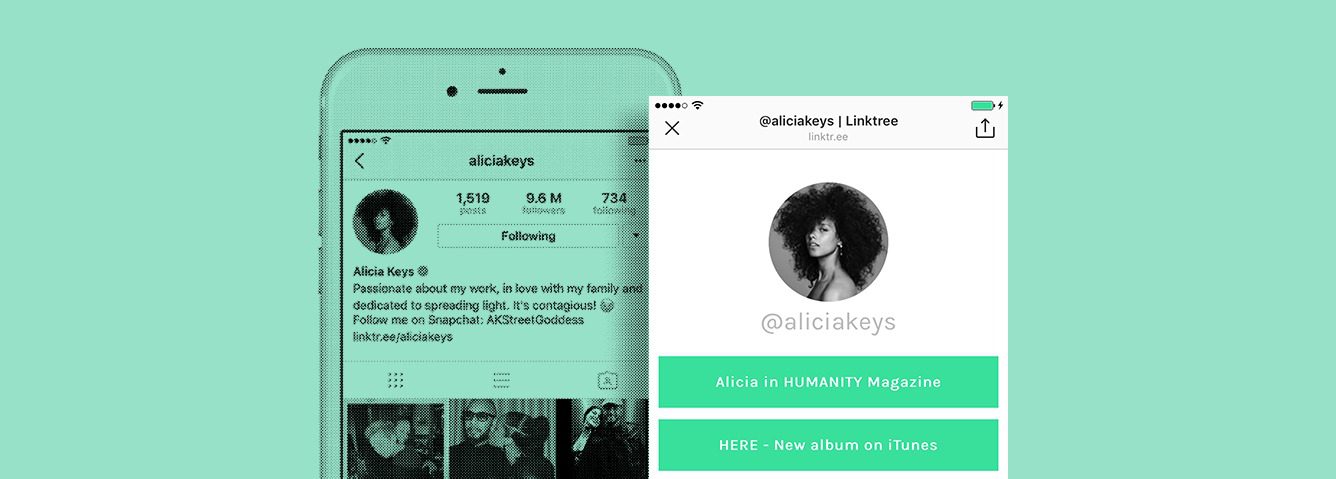
This helps bloggers (and content producers of all kinds) share posts on Instagram about new content. Just mention “link in bio” (or hashtag #linkinbio), and people can click-thru that link to get to the content you want them to see. So where you get one link to point people to, using a landing page like this gets people to where you want them much more efficiently.
Even better, you can integrate other features like newsletter signup, products or services, event details, or other promotions you’re running.
Linktree Alternatives
Linktree is still the most recognized name in bio link tools, and it’s gotten more capable since it launched. The free plan gives you unlimited links and basic analytics. Paid plans ($5-$24/month) add custom domains, scheduling, and more advanced features.
But Linktree has a real limitation that doesn’t get talked about enough: it sends your visitors to Linktree’s domain, not yours. Instead of yourbrand.com/links, people see linktr.ee/yourname. That’s their brand, not yours — and it means you’re building traffic on someone else’s platform.
Here are the main alternatives worth knowing about in 2026:
Beacons — Popular with creators who want to sell digital products directly from their bio page. Has AI-powered features and a free plan, though the best tools require a paid tier.
Stan Store — Built for creators selling courses, coaching, and digital products. More of a storefront than a link page. Starts at $29/month with no free plan.
Pallyy — Good for social media managers who want bio links combined with scheduling and analytics in one tool. From $15/month.
Carrd — A simple one-page website builder that many creators use as a bio link page. Very affordable at $19/year for the Pro plan. Design-focused but no built-in analytics.
Build Your Own (Recommended) — This is the option I consistently recommend, especially if you’re already on WordPress. You get complete control over design, branding, and data. Your visitors land on your website, not a third-party platform. Your analytics work. Your SEO benefits. And with the Divi theme — which is included in all of our WordPress hosting plans — you can build a beautiful bio links page in under an hour using the free templates below.
The Anatomy of a Good Bio Links Page
Especially if you’re going to build your own page, you should understand a few key concepts for how to build it well.
The first rule for your bio links page is to keep it simple. You don’t want to overwhelm people with so much stuff that you end up scaring them away. Remember, the main goal is to just get them to the next step. So focus on the core elements that encourage them to tap through to that important content.
A few key elements you’ll want to consider are:
- A profile pic (or logo) – This is a key branding element.
- Your name – Another important core branding piece.
- Short description (optional) – If you do this, keep it brief. It’s not the place for your full story (like your about page), but definitely good for a brand-building tagline or short description statement.
- Quick link(s) to recent content – Have a button going to your latest blog post, or even add a blurb from the post itself.
- High priority links – Use buttons to connect people to key pages on your website, including books, products, etc.
- Email opt-in – Add a simple opt-in on the page, or use a button to link to it.
- Social media links – Make it easy to connect in other places you engage with your audience.
- A clear primary CTA – Don’t just list links equally. What’s the one thing you most want someone to do right now? Make that button stand out visually from the rest.
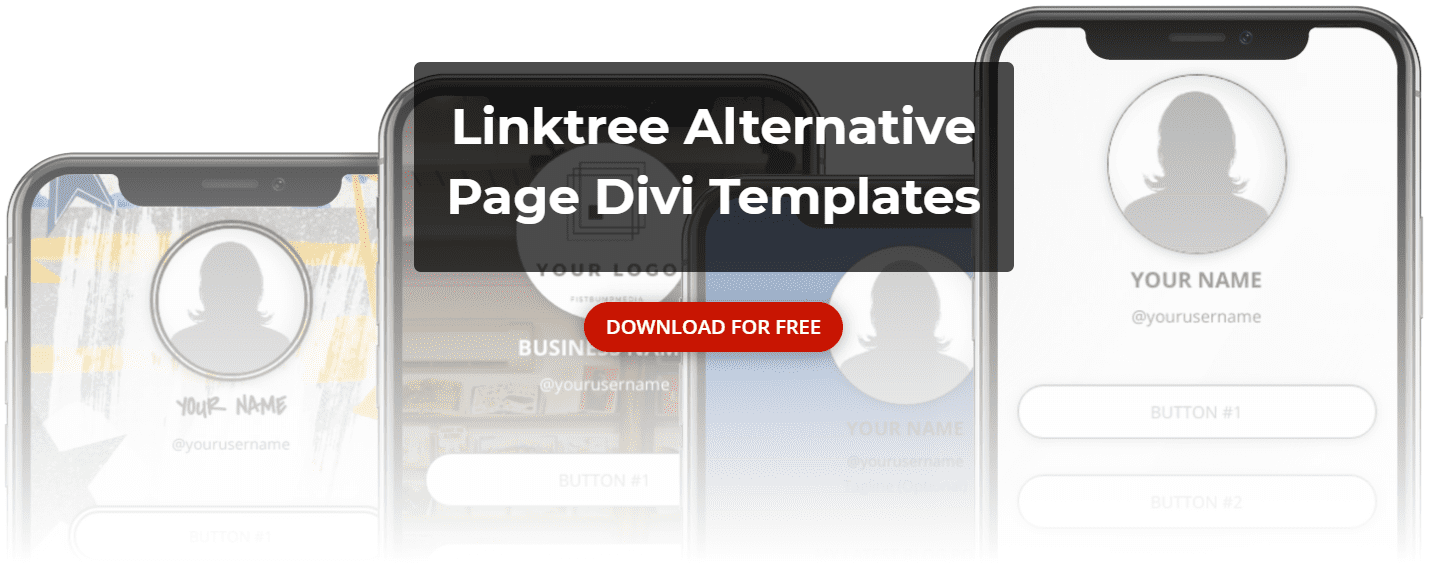
To make this process simple for you, we’ve created several templates that you can upload to your website (using WordPress with the Divi theme), and customize from there. Check out the demos of these Linktree-alternative pages, and download your free templates now!
How To Build Your Own Bio Links Page (With Divi)
We use the Divi theme by Elegant Themes for bio link pages because it gives you complete control over design without needing to write code. It’s also included in all of our WordPress hosting and maintenance plans, so if you’re already hosting with us, you already have it.
If you don’t have Divi yet, you can grab it through our affiliate link — it’s one of the tools we genuinely recommend and use every day.
Once you import the layouts to your website, you can load them to a new page using the Divi Builder. Follow these instructions:
- Add a new page
- Click the “Use The Divi Builder” button
- Select “Choose a Premade Layout”
- Go to the “Your Saved Layouts” tab
- Pick the template you’d like to start with
After that, you can edit each module however you’d like.
Basic Layout and Design
The templates use Text modules for each of the buttons on the page. You can change the text that appears on the button, and update the link that it points to.
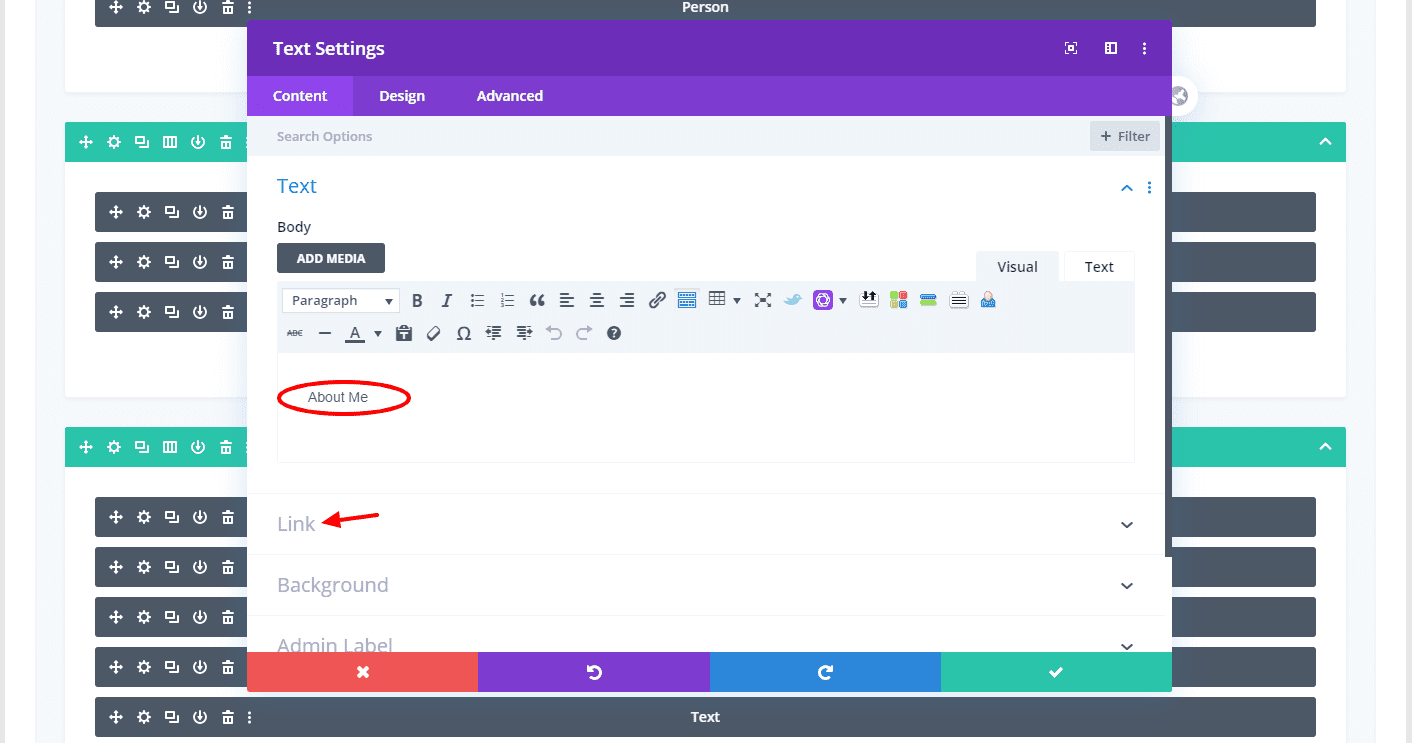
If you’re feeling adventurous, you can even change styles, animations, or any other properties you’d like.
The page background can be updated in the Background settings in Section Settings (click the gear icon on the blue bar). There you can change the background image or colors.
And, as with any other page built in Divi, you can add all kinds of modules to add to your page. It’s still best to keep the page simple, but modules like Email Optin, Countdown Timer, Search, Testimonial, Video, and many others can really help you take your bio links page to the next level.
To ensure the best look, toggle over to the Phone View to see how everything appears. Assuming that you’re using the page for your bio link on Instagram, nearly all of the visitors to the page will likely be coming from mobile devices. So it’s most important for it to look good there. And if you want to adjust for potential desktop viewing, you can do that too. But desktop should definitely take a backseat to mobile in the design and appearance on this page.
Page Attributes Settings
Once you have the page elements in place and are ready to publish the page, there are a few key attributes that will be important to consider. The first of which is the permalink structure. Ultimately, the page name can be whatever you’d like. But simple is best. And visitors on Instagram will see the link name in your bio. While simplicity is the key, feel free to have fun or give it a call-to-action kind of feel. It’s okay to let your personality show. A few examples for permalink page names are:
- yoursite.com/bio-links
- yoursite.com/welcome
- yoursite.com/hi
- yoursite.com/instagram
- yoursite.com/as-seen-on
- yoursite.com/click-me
- yoursite.com/hello
Also, you’ll need to update a couple of settings in order to ensure everything displays properly. Look for the Page Attributes widget and update the following settings:
- Parent: (no parent) – Do not make this page a sub-page to another page (like About, etc). That will extend the permalink unnecessarily. Keep this page on the first level (no parent) in order to keep the permalink short.
- Template: Blank Page – This setting removes all of the normal website headers and footers. Everything you need in the design for these pages is included in the layout itself, so you don’t want to complicate everything with more navigation and other elements.
Whether you’re using the free templates or starting from scratch on your own, you’ll love the flexibility and virtually unlimited design options and control you can get. And hosting all of this on your own website means that you’ll get it all at no additional cost!
How To Use a Bio Links Page In Your Instagram Bio
Once you’ve published the page on your website, it’s time to add it to your Instagram bio. To edit your bio:
- Go to your profile
- Tap the Edit Profile button next to your current bio
- Type (or copy/paste) your page URL (permalink) in the Website field
- Tap the Done (or check icon) button
Whenever you make changes like this, it’s always best to visit your profile and tap the link to ensure everything works as it should. But easy-peasy… you’re new Instagram linktree-like bio links page is live! Now you can mention in your posts, “link in bio,” to get visitors to all of the great stuff you want to direct them to.
Other Places You Can Use Your Bio Links Page
While these kinds of bio link pages started with Instagram, you can use them just about anywhere. And if you want to get super cool, you can create separate linktree pages for various platforms. For example, the bio links page you want people to visit coming from your LinkedIn page may look a little different than the one for visitors from Instagram.
Get creative and explore different ways to use pages like these. Here’s a quick list to inspire you:
- TikTok bio – TikTok now allows one link in bio for business accounts. Your bio links page works perfectly here.
- YouTube channel – Add it to your channel description to give subscribers a single place to find everything you offer.
- LinkedIn profile – Share links to your portfolio, previous work, email, and social profiles
- Twitter bio – Connect people to your other social media profiles and important links
- Business cards – Increase the dynamic with special links and content for people you share your business cards with
- QR Codes – Point a QR code on posters and other print advertising to share specials, etc with people
- Your email signature – Important content to direct people to from your emails
- Links in your book(s) – Share key resources with readers of your books
The possibilities are really endless. And if you’re doing this on your own website, you can create as many of these specialized pages as you want. So change designs, content, and everything for really just about any audience you can imagine.
Final Thoughts
The tools in this space have gotten more sophisticated since bio link pages first took off — but the core argument for building your own hasn’t changed. Your website is your real estate. Every visitor who lands there instead of a third-party platform is a visitor you can track, retarget, and convert.
If you’re on WordPress with Divi, you’re already set up to do this. Download the free templates below, customize them with your links and branding, and you’ll have a bio links page that looks professional and lives on your own domain.
And if you want Divi but don’t have it yet — grab it here (affiliate link, and genuinely what we use and recommend). Or if you’d rather have someone else handle the whole website setup, our hosting plans include Divi as part of the package.
Want the templates plus tips for growing your platform?
Download the free Divi templates and I’ll also send you occasional resources on growing your audience, building your platform, and making the most of your website. No spam — just practical stuff.


![is photography dead? [INFOGRAPHIC]](https://b753274.smushcdn.com/753274/wp-content/uploads/mobile-photography.jpg?lossy=1&strip=1&webp=1)
![brands and the facebook like [INFOGRAPHIC]](https://b753274.smushcdn.com/753274/wp-content/uploads/facebook-ig.jpg?lossy=1&strip=1&webp=1)
0 Comments