by Dan King | Jun 3, 2026 | blogging strategy
In my last post, I covered what WordPress 7’s AI infrastructure actually is and why it matters. The short version: WordPress now has a standardized way to connect to AI providers, and the three default options are Claude (Anthropic), ChatGPT (OpenAI), and Gemini (Google).
But knowing the infrastructure exists and knowing how to use it to actually write better content are two very different things.
This post is the second part. If you’ve got your connector set up and you’re staring at the editor wondering what to do next, this is where we pick up.
First, the Plugin You Actually Need
The connectors you set up under Settings → Connectors are just the plumbing. To get usable AI features inside the block editor, you also need to install the official AI plugin from WordPress.org (search “AI” by WordPress.org in your plugin directory).
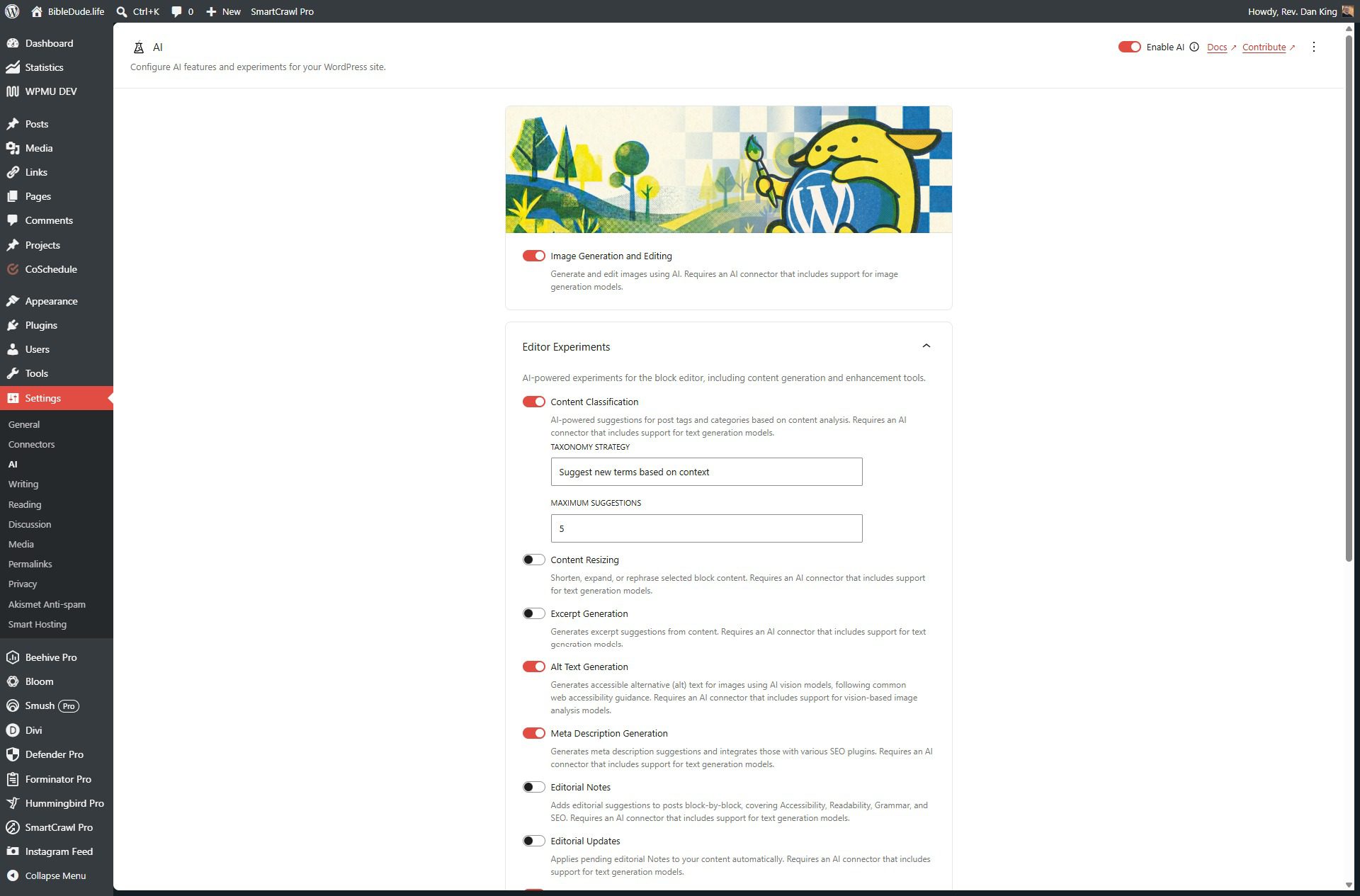
Once it’s active, head to Settings → AI and you’ll see a list of experiments you can toggle on individually. Here’s the current lineup:
- Title Generation
- Excerpt Generation
- Content Summarization
- Alt Text Generation
- Meta Description Generation
- Review Notes
- Content Classification (tags and categories)
Turn on the ones that fit how you work. You don’t have to enable all of them. I’d suggest starting with Title Generation, Excerpt Generation, Review Notes, and Alt Text Generation. Those four cover the spots where most bloggers lose the most time.
Which AI Should You Use?
Here’s something most posts about this topic gloss over: you can use different AI providers for different tasks.
The Connectors system lets any compatible plugin tap into whatever provider is configured, and if you’ve set up more than one, some tools let you choose per task. Based on hands-on testing across the community, here’s how the three providers tend to perform for content work:
Claude is the strongest choice for text-based tasks. It produces the tightest, most natural excerpts and summaries, and its Review Notes read like feedback from an experienced editor rather than a checklist. If you care about your content sounding like a human wrote it, Claude is the one to use for writing and editing tasks.
Gemini does well with alt text. Its alt text generation is the most detailed, pulling in contextual information about what’s happening in images rather than just describing objects. If your content is image-heavy, Gemini is worth connecting just for that.
ChatGPT (OpenAI) handles image generation through DALL-E and turns in solid results for quick concept images. For straight text tasks it performs well, though it tends to feel slightly more formulaic than Claude.
The practical recommendation: connect Claude as your primary provider and use it for everything text-related. If you want Gemini for alt text, connect both. The Connectors screen makes it easy to manage.
What Each WordPress 7 AI Feature Actually Does in Your Workflow
Let’s walk through the WordPress 7 AI features that are most useful for a typical blog post, in the order you’d actually use them.
While You’re Writing: Review Notes
This is the one I’d use first and most often. Once your draft is in decent shape, click Generate Review Notes and the AI goes through your post block by block, flagging things like grammar issues, readability problems, missing alt text on images, and SEO gaps.
The notes show up as editor comments, not as changes to your content. You decide what to act on. Think of it as a second pass from an editor who catches the things you stopped seeing after your third re-read.
It’s like having a second editor pass on every post before you hit Publish. That’s a fair description. It doesn’t replace good writing, but it catches the things you miss when you’re too close to the content.
After You’ve Written: Title Generation
You’ve finished the post. Now you need a title. Click Regenerate Title and WordPress gives you three options based on your actual content.
The important thing here is to treat these as a starting point, not a final answer. Pick one, regenerate for more options, or use one as a starting point and edit it yourself. The AI reads your content and understands what the post is about, so the suggestions are usually relevant. But they won’t know your voice, your audience’s language, or the specific angle you’re going for. Use them to break the blank-title paralysis, then make one yours.
After the Title: Excerpt Generation
The excerpt is the 1-2 sentence summary that shows up in search results, social shares, and your blog archive. Most people either leave it blank (bad) or write something generic at the last second (not much better).
Excerpt Generation writes this from your content automatically. Read it, adjust the tone to match your voice, and move on. It takes about 30 seconds to review instead of 5 minutes to write from scratch.
On Images: Alt Text Generation
Alt text is one of those things everyone knows they should write and almost nobody takes the time to do well. The AI plugin can generate it for individual images as you add them to the editor, or you can run a bulk alt text generation across your media library for images that don’t have it yet.
This one’s worth enabling just for the accessibility and SEO benefit on images you’ve already published.
Before You Publish: Meta Description
Meta Description Generation produces SEO-friendly meta description suggestions that integrate with SEO plugins. Same principle as the excerpt: use it to get a solid starting draft, then read it and adjust for your voice and the specific keyword angle you’re targeting on that post.
What These Tools Don’t Do (and Why That Matters)
Here’s the honest part.
The AI features inside WordPress 7 are genuinely useful for the finishing work on a post: tightening up the metadata, catching editorial gaps, generating starting points for titles and excerpts. They save real time on the parts of publishing that aren’t writing.
What they don’t do is write the post for you in any meaningful way. The current editor experiments don’t have a “draft this section” or “write the next paragraph” feature. The AI responds to your content, it doesn’t generate it from scratch.
And honestly, for most bloggers and content creators, that’s fine. The writing itself should come from you. The structural and metadata work around it is where AI saves the most time with the least risk to your voice.
If you want AI to help with the actual writing, research, outlining, and drafting, you’re talking about a workflow that lives outside the WordPress editor, in a tool like Claude.ai or ChatGPT, before the content comes into WordPress at all. That’s a different conversation about building a content system, not just using a feature.
(If that’s what you’re after, that’s exactly what AI Author Lab is built around.)
The One Thing to Watch
One heads-up worth flagging: API keys stored through the Connectors UI are masked in the interface but not encrypted in the database. For most small sites and personal blogs this is low-risk in practice, but it’s worth knowing. If you’re on managed hosting with a security-conscious setup, this is already handled. If you manage your own server, keep it in mind.
Quick Setup Checklist
If you’re starting from scratch:
- Update to WordPress 7 if you haven’t already
- Go to Settings → Connectors and install your preferred AI provider (Claude is my recommendation for text work)
- Add your API key
- Go to Plugins → Add New and search “AI” by WordPress.org, then install and activate it
- Go to Settings → AI and toggle on Title Generation, Excerpt Generation, Review Notes, and Alt Text Generation
- Write a post, then use Review Notes before you publish and Title Generation to check your headline
That’s it. The features are lightweight, the setup takes about 10 minutes, and the time savings show up immediately on anything you publish regularly.
If you haven’t set up your connectors yet, my previous post walks through exactly how to do that and explains the infrastructure behind it.
by Dan King | May 25, 2026 | fistbump media updates
If you’ve been following WordPress news lately, you’ve probably seen the buzz about WordPress 7.0 and its new AI features. And if you’ve already updated and you’re sitting there wondering “okay, but… what does this actually do?” — you’re not alone. That’s the most common reaction I’ve seen, and honestly, it’s fair.
Here’s the honest take: what’s in WordPress 7 right now is a foundation, not a finished product. But it’s an important foundation, and understanding what’s been built — and what’s coming — is worth a few minutes of your time.
Let me walk you through it.
What WordPress 7 Actually Ships With
The big change in WordPress 7 isn’t a shiny new AI button that writes your content for you. It’s infrastructure — specifically, a provider-agnostic AI framework that gives WordPress a standardized way to interact with AI models from different companies.
In plain language: WordPress can now talk to AI. And it’s built to work with any major AI provider, not just one.
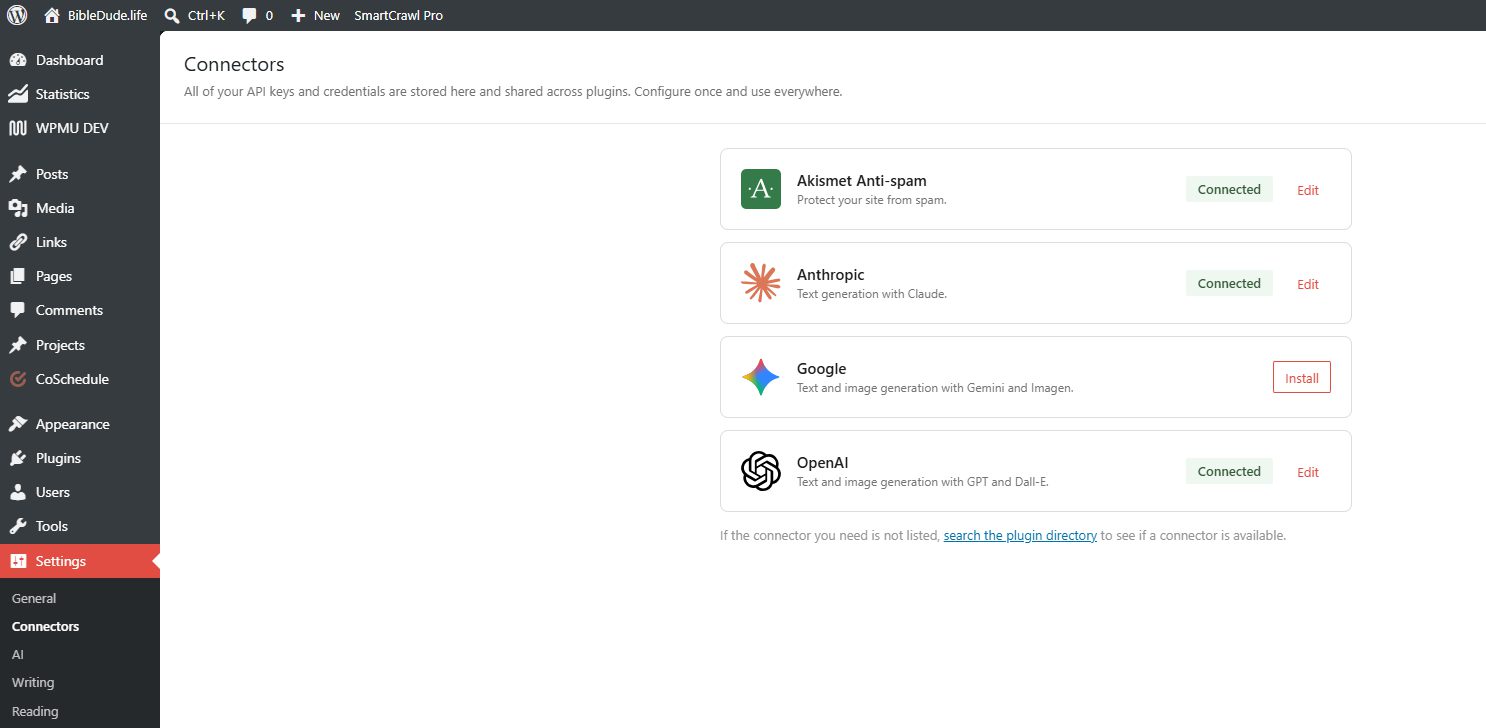
The three default connectors built into WordPress 7 are OpenAI (ChatGPT), Anthropic (Claude), and Google (Gemini) — the three biggest players in the space. You’ll find them under Settings > Connectors in your WordPress dashboard.
You no longer need separate plugins for each AI provider. Enter your API key once in the Connectors screen and all compatible plugins can use that connection automatically. That’s genuinely useful once the plugin ecosystem catches up to it — which is already starting to happen.
One important note for anyone with privacy concerns: WordPress does not send prompts or data to any AI service by default without your explicit consent and configuration. Nothing is happening behind the scenes until you set it up.
Setting Up the AI Engine Plugin
Getting the connectors set up is step one. Step two is activating the AI Engine plugin, which is what actually gives you useful functionality to work with right now.
When AI Engine is active, the Connectors page shows a banner letting you enable AI Engine to manage your connectors. One click and every AI call on the site — whether it comes from core, a theme, or another plugin — runs through AI Engine.
What does that give you? Every call gets logged with the model used, tokens consumed, and cost. You also get defaults per feature type, rate limiting, and support for additional providers beyond the default three.
The out-of-the-box WordPress AI experience is pretty bare-bones. There’s no streaming, no logging, no cost tracking, and no rate limits in the default setup. AI Engine fills those gaps and gives you a production-ready layer underneath the new framework.
So: install AI Engine, activate it, connect your preferred AI model (Claude, ChatGPT, or Gemini — your call), and turn on the features you want to start using. That’s the setup.
Okay But What Does It Actually Do Right Now?
This is the question everyone’s asking, and I want to be straight with you: the current functionality is modest. You’ll see things like content suggestions in the editor, some writing assistance features, and the experimental tools that Automattic has packaged alongside the release.
If you turn it on expecting to be blown away, you probably won’t be — yet.
WordPress 7.0 adds AI infrastructure, not a built-in chatbot. What it’s really done is lay the groundwork so that plugins, themes, and third-party tools can now connect to AI in a consistent, standardized way across your whole site — instead of every plugin doing its own thing with its own API key management.
That’s the shift that matters. The platform is now built to support AI-powered tools at a deeper level than ever before. And that changes what’s possible going forward.
Why This Matters for Our Clients Specifically
Here’s where I want to be a little more direct with you if you’re one of our hosting clients.
We’ve been working on Smart Hosting features that are almost ready to roll out — tools designed to give you better insight into your site’s performance, traffic, and health directly from your dashboard. The AI infrastructure that just landed in WordPress 7 opens up direct integration paths for exactly the kind of tools we’re building.
I’m not going to overpromise on timing or specifics right now. But I will say: this release wasn’t just interesting news for us. It was a green light.
The foundation is in place on your end. When our tools are ready to connect, your site will be ready to receive them.
What to Do Right Now
If you want to get set up and start exploring:
- Update to WordPress 7 if you haven’t already
- Go to Settings > Connectors and install the connector for your preferred AI provider (Claude, ChatGPT, or Gemini — all three are solid choices)
- Install and activate the AI Engine plugin
- Enable AI Engine to manage your connectors
- Activate the features you want to start using and explore what’s there
Don’t stress about choosing the “right” AI model. All three connectors work well, and you can switch providers at any time from the Connectors screen without breaking anything. If you’re already using Claude for other things, it’s a natural fit here too.
And if you’re on one of my hosting plans and want a hand setting this up, just reach out. We’ll get you sorted.
by Dan King | Apr 2, 2026 | business strategy
I spend a lot of time thinking about how churches and ministries can use AI to do what they already do — just better. And when Anthropic (the company behind Claude AI) launched their nonprofit program offering up to 75% off for qualifying organizations, I immediately thought about what that means for churches.
Because here’s the thing: most churches are trying to do a lot with very little. One pastor. A few volunteers. A small staff stretched thin across Sunday services, social media, pastoral care, bulletins, newsletters, visitor follow-up, and about a dozen other things that all feel equally urgent. AI doesn’t replace any of that human work — but it can take a real load off the operational side of things, so your people can focus on what only they can do.
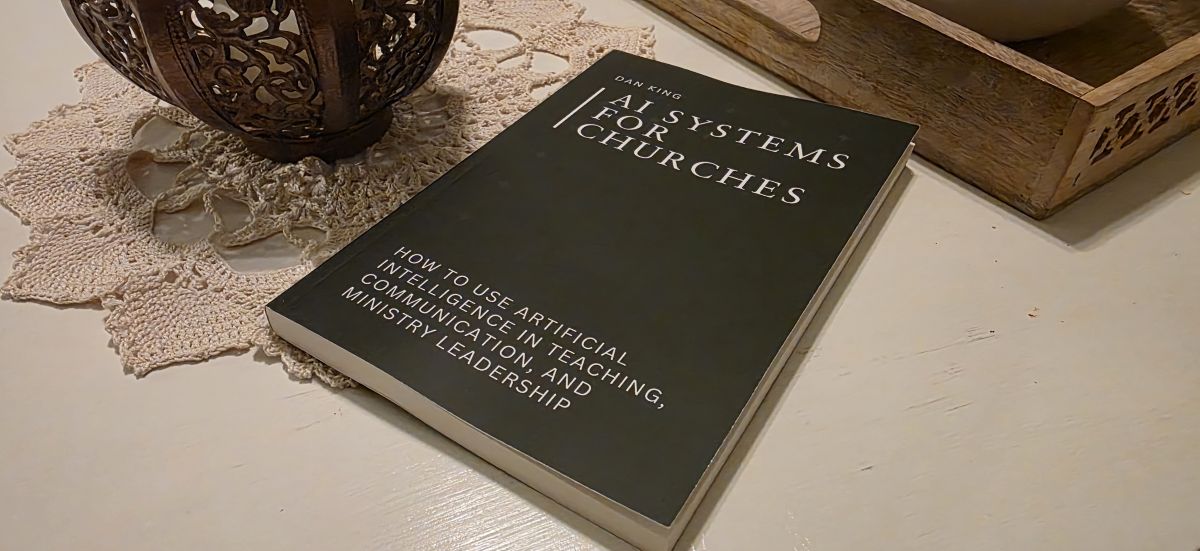
I wrote a whole book about this called AI Systems for Churches, and one of the core ideas running through it is that AI works best when it’s built into real systems, not used randomly. The tools I’m about to share are the foundation of that stack. And when you put them together, you’re looking at roughly $31 a month to give a church genuinely powerful AI capabilities.
Let’s walk through them.
1. Claude (via Claude for Nonprofits)
Claude is the tool I’d put at the center of everything a church does with AI — and it’s the one I built most of the systems in the book around.
In the teaching preparation chapter, I describe Claude as a study partner and idea-development assistant — something that helps you go deeper into passages, think more broadly about application, and organize your thoughts into strong teaching structures. The key phrase there is what it doesn’t do: it doesn’t write your sermons. What it actually does is help you prepare them more thoroughly.
The way I use it for teaching prep is conversational. After doing my own prayerful study of a passage, I essentially sit down with Claude the way I’d sit down with a knowledgeable friend and start thinking out loud. Because the AI has my exegetical framework and theological guidelines already loaded, it can track with where I’m going, surface connections I hadn’t made, and help me develop my ideas — rather than just generating something generic from a blank prompt.
Beyond sermon prep, Claude handles the full communication load: newsletters, emails, volunteer communications, bulletin announcements, visitor follow-up, event promotion. Once you’ve defined your church’s voice and tone (the book walks through how to build that), it produces content that actually sounds like your church — not like every other AI-generated church email.
And for qualifying nonprofits (which includes most 501(c)(3) churches), Anthropic’s nonprofit program offers up to 75% off the Team plan. The verification is quick, the discount doesn’t expire annually, and you end up at about $8/user/month. That’s the deal that makes this a no-brainer.
Cost: ~$16/month (2 users after nonprofit discount)
2. NotebookLM (Google)
One of the ideas I come back to throughout the book is the concept of one sermon becoming a week’s worth of content that extends its reach far beyond the people who were in the room. NotebookLM is the tool that helps make that happen.
Here’s how I use it: I upload existing content — sermon series notes, teaching transcripts, a body of writing I’ve built around a particular topic — and then let it generate ideas from that material. Social media posts. Email newsletter angles. Discussion prompts for your Facebook group or small group. Infographics. Videos. It essentially turns a library of content you’ve already created into an ongoing content engine.
For churches, think about what’s already sitting in your archives. Sermon series. Bible study content. Devotionals. Teaching notes. That’s years of material that most congregations never fully leverage. NotebookLM can help you surface and repurpose it in ways that keep people engaged throughout the week, not just on Sunday.
The free version handles just about all of what you’ll need. (Plus, Google has some pretty nonprofit-friendly offers too if you need more.)
Cost: Free
3. OpusClip
In the book, I mention that if you record your sermons on video, there are tools that can identify compelling clips for Reels and YouTube Shorts — and that one sermon can become a week’s worth of digital content. OpusClip is the tool I love for this.
It reviews the full video of a service or teaching, identifies the strongest moments, and creates short-form vertical clips ready to post throughout the week. What I particularly like is that it gives each clip a virality score — its prediction of how well that clip will perform. That makes prioritizing easy. You’re not watching back through an hour of footage trying to find the right thirty seconds. You scan the scores and know immediately what’s worth grabbing.
For churches that already have someone handling video, this fits naturally into the social media side of the communication system. For churches just getting started with video, it dramatically lowers the barrier.
Cost: ~$15/month (Starter plan)
4. Canva Pro (Free for Nonprofits)
Most churches need a constant stream of visuals: social media graphics, event flyers, announcement slides, bulletin covers, series artwork. And most churches don’t have a graphic designer on staff.
Canva‘s template library handles a lot of that, and it’s already familiar to most people in a church communications role. But the feature I want to highlight is AI image generation. This opens up creative possibilities that most ministries couldn’t pull off otherwise.
Teaching through the book of Jonah? Have Canva generate a stained glass-style image of the whale spitting Jonah onto the shore. And no, that doesn’t mean every image you create now has to be in stained glass style just because I got that stuck in your head. You’re welcome.
The point is that you can create custom, thematically specific images on demand — no stock photo subscriptions, no waiting on a volunteer who has design skills but also has a full-time job. Describe what you need and go. For nonprofits with up to 50 users, Canva Pro is free.
Cost: Free (for nonprofits)
What This Actually Costs
Put it all together and you’re looking at about $31/month minimum:
- Claude for Nonprofits (2 users): ~$16/month
- NotebookLM: Free
- OpusClip Starter: ~$15/month
- Canva Pro: Free
That’s a genuinely capable AI stack for a church budget. The tools are accessible and the cost is manageable.
What takes a little more investment is building the systems behind those tools — the workflows your team can follow consistently, the voice guidelines that keep your communication on-brand, the teaching preparation frameworks that make AI output actually useful rather than generic. That’s the difference between a church that tries AI and a church that gets lasting results from it.
That’s exactly what AI Systems for Churches is built to help you do. It walks through each major ministry system — teaching preparation, communication, discipleship and programming, administration, and data — with practical, repeatable workflows for putting these tools to work inside a real church context.
If you’re ready to stop using AI randomly and start building something that actually compounds, it’s a good next step.
Get AI Systems for Churches on Amazon →
Not sure where your church’s online presence stands? Start with a free website grade.
by Dan King | Apr 1, 2026 | blogging strategy, business strategy
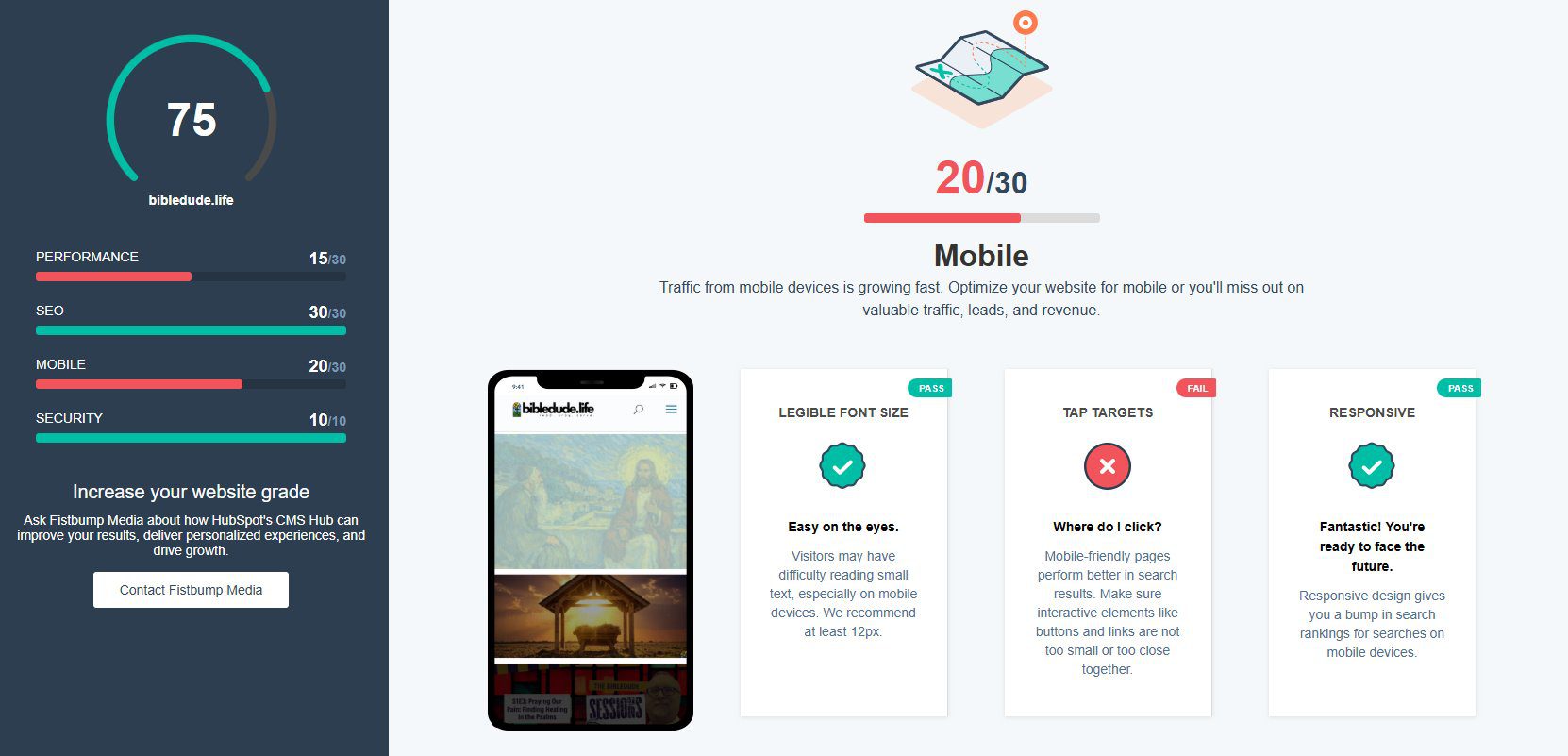
You ran your website through our free grader. You got a number. Maybe it was 72. Maybe it was 45. Maybe you got a perfect 100 on SEO and a 12 on Performance and now you’re not sure what any of it means for your actual business.
That’s what this post is for.
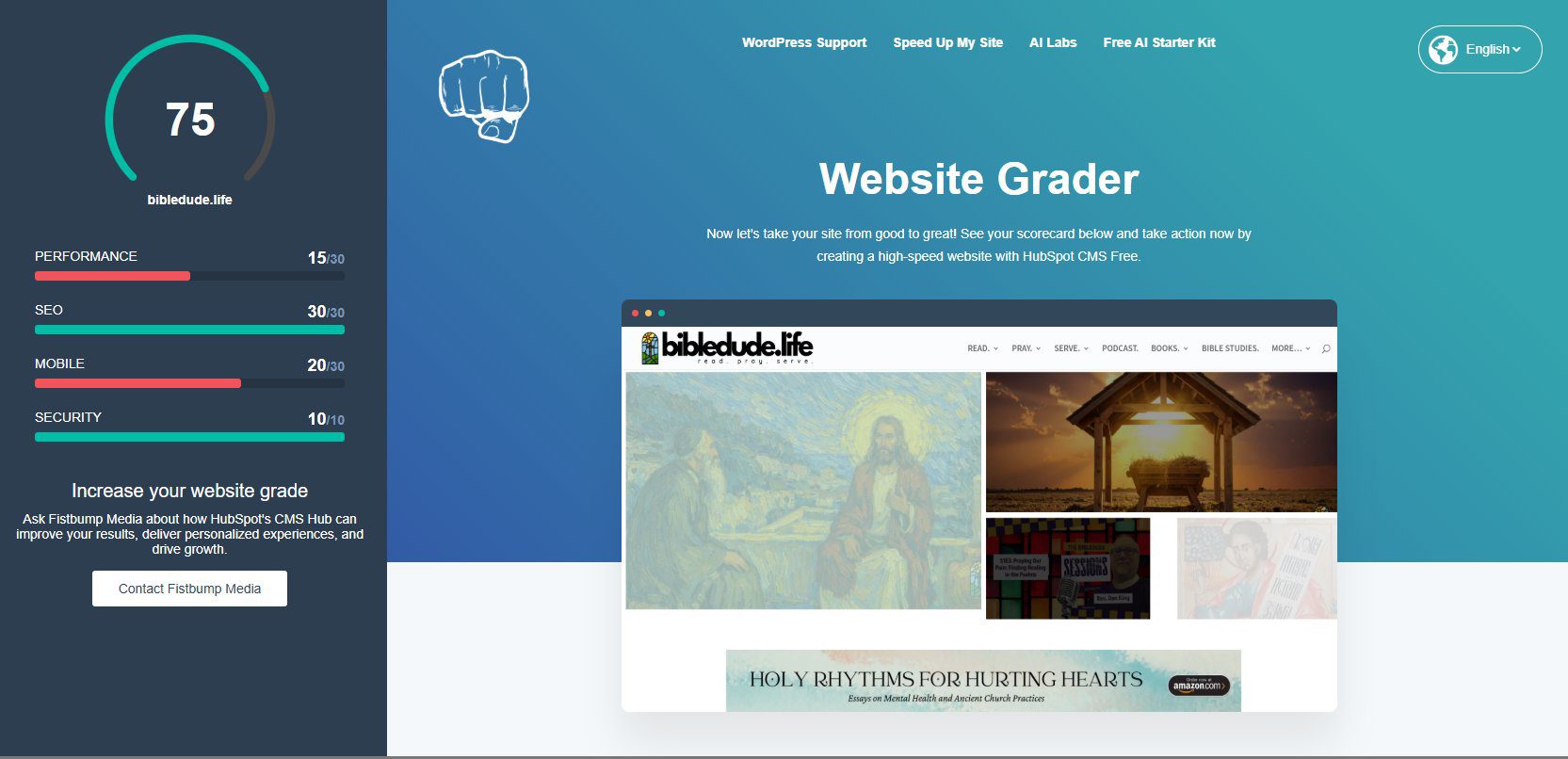
I ran my own personal blog through the grader so I could show you exactly what the results look like and what to do with them. Let’s walk through it.
The overall score gives you a quick snapshot, but the category scores are where the real information is.
Your Overall Score
The overall score is out of 100 and is calculated from four categories: Performance (30 points), SEO (30 points), Mobile (30 points), and Security (10 points). A score of 75 means you’re doing some things well and some things need attention.
Here’s the thing most people miss: the overall score is almost meaningless on its own. What matters is which category is pulling it down. A 75 with a 28 on Performance is a very different problem than a 75 with a 28 on Mobile. Each one has different causes and different solutions.
Find your lowest category score. That’s where to start.
Performance: /30
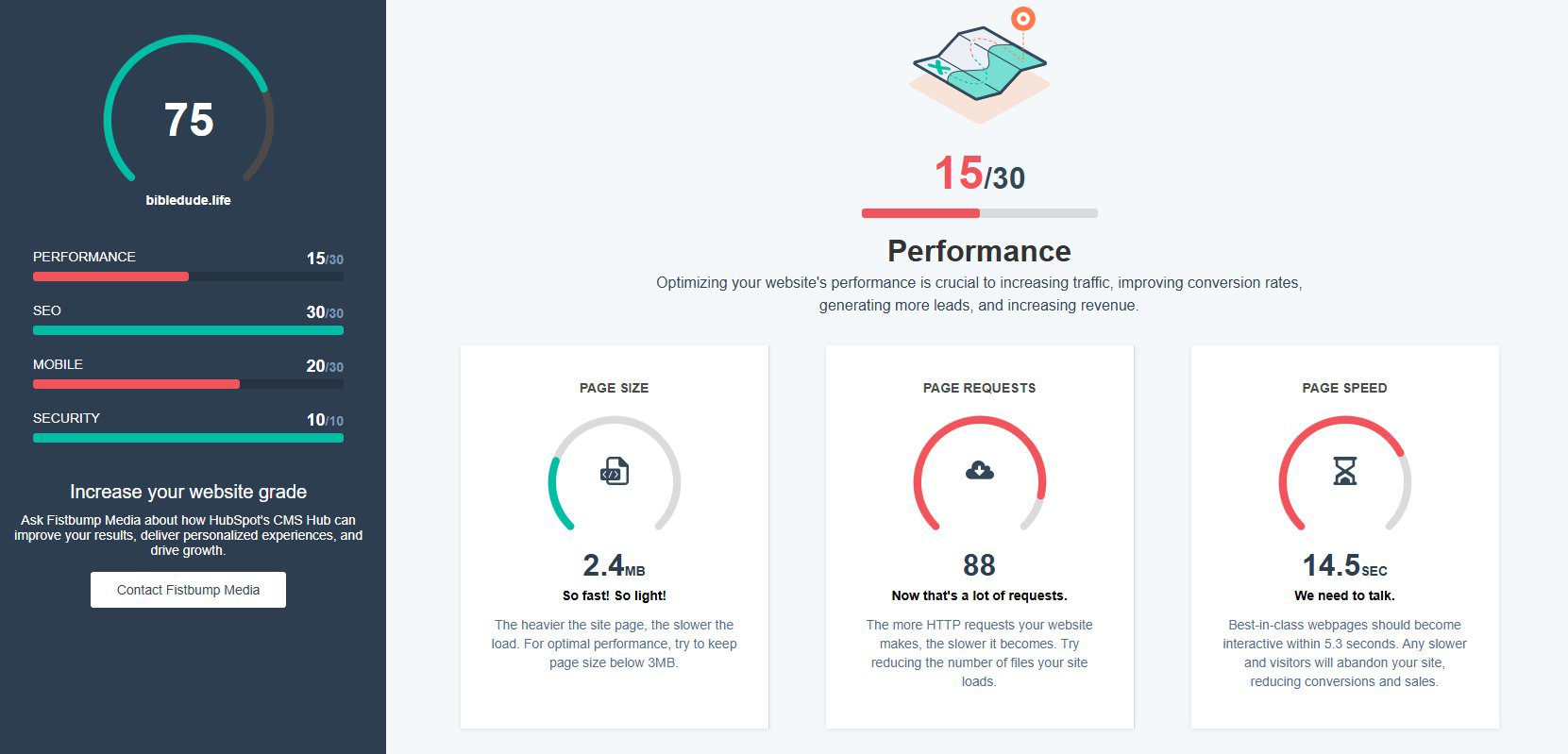
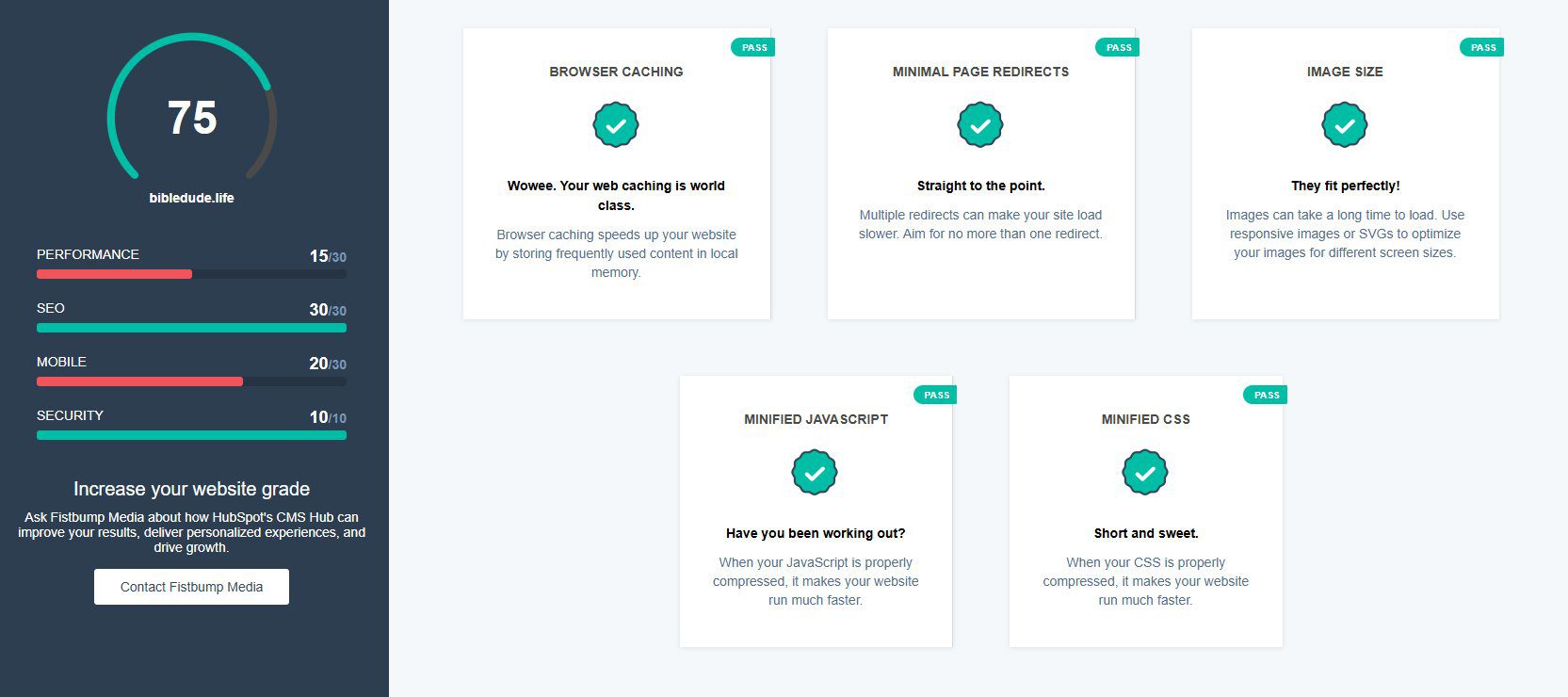
Performance measures how fast your site loads and how efficiently it delivers content to visitors. The grader checks three things: page size, page requests, and page speed.
Page size is how much data your site forces the visitor’s browser to download before anything shows up. Under 3MB is the target.
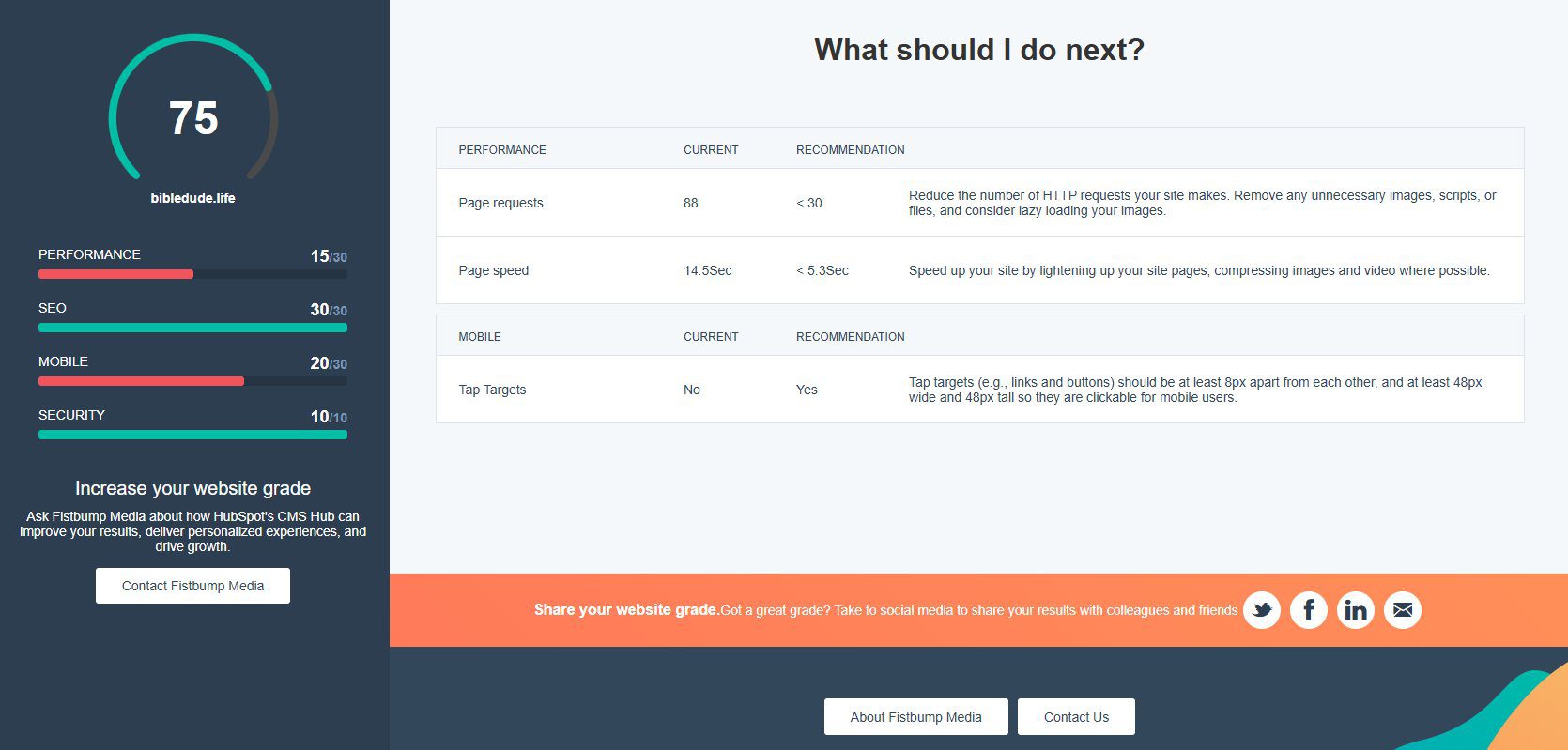
Page requests is the number of separate files your site has to load — images, scripts, stylesheets, fonts. The more requests, the longer everything takes. Under 30 is the goal. My personal blog had 88, which is why it scored 15/30.
Page speed is the one most people care about. Best-in-class sites load in under 5.3 seconds. Mine came in at 14.5 seconds — “we need to talk” as the grader puts it.
Why does this matter? Because slow sites lose visitors before they even have a chance to read a word. Google also uses page speed as a ranking factor, so a slow site doesn’t just frustrate visitors — it actively hurts your search visibility.
If your Performance score is low: This is usually fixable without rebuilding your whole site. Image compression, caching configuration, and plugin cleanup can make a significant difference. Our speed optimization service addresses exactly this, typically within 48 hours.
SEO: /30
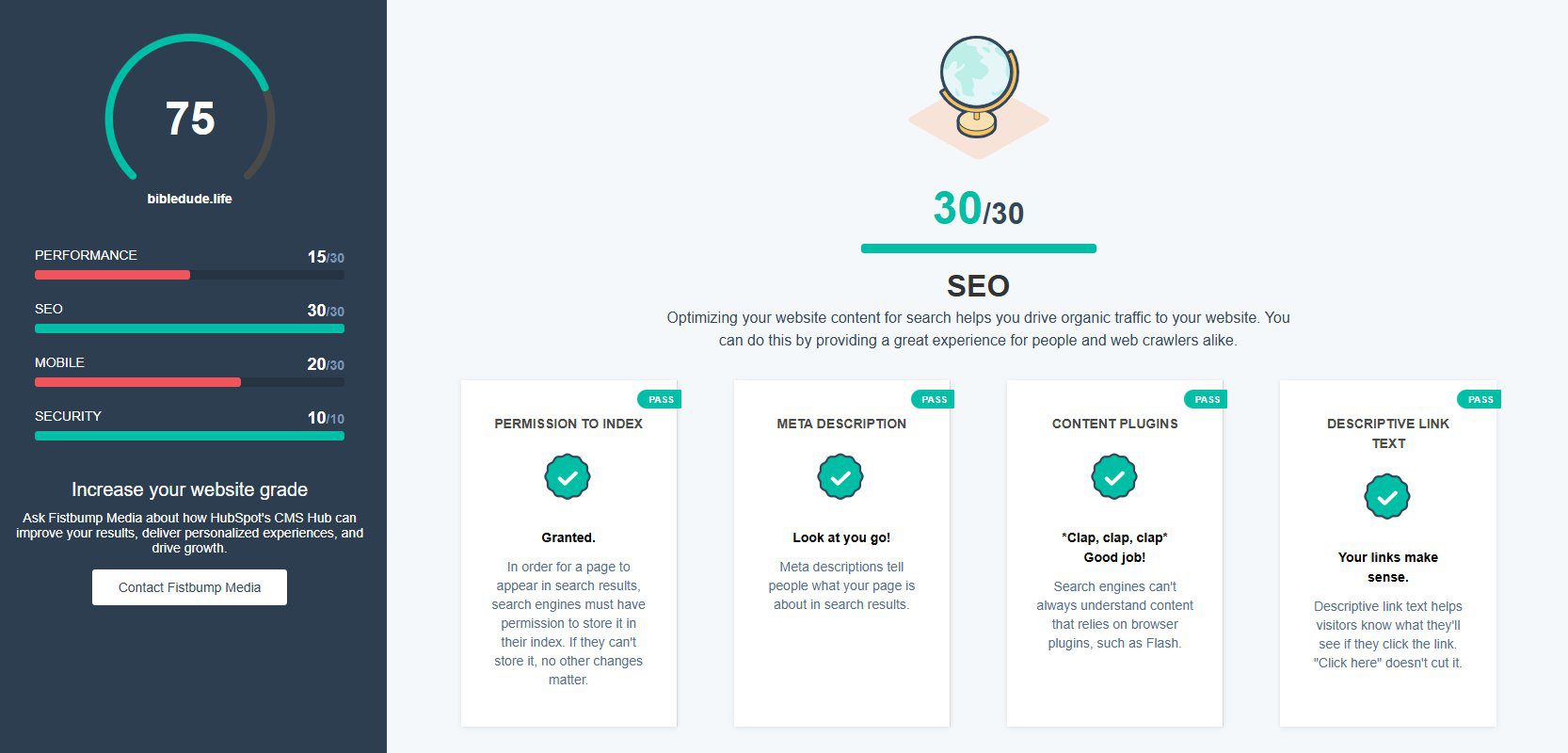
The SEO score checks four technical fundamentals: whether search engines have permission to index your site, whether you have meta descriptions set up, whether you’re using content plugins correctly, and whether your link text is descriptive.
This is the basic hygiene layer of SEO — not keyword strategy or content planning, just whether your site is set up in a way that lets Google understand and index it properly. My blog scored 30/30 here, which means these technical basics are in order.
Getting a perfect SEO score doesn’t mean your site ranks well for anything. It means the technical foundation is solid. You still need a content strategy to actually rank for the terms your audience is searching.
If your SEO score is low: Start with the technical fixes the grader identifies. Then, if you want to build real search traffic, this course walks through a complete SEO strategy for blogs and content sites.
Mobile: /30
The mobile score checks three things: whether your fonts are legible on small screens (at least 12px), whether your tap targets — buttons and links — are large enough to click with a finger, and whether your site uses responsive design that adapts to different screen sizes.
More than half of all web traffic now comes from mobile devices. If your site gives mobile visitors a poor experience, they leave — and Google notices. My blog scored 20/30 because of tap target issues, meaning some buttons and links are too small or too close together for comfortable mobile use.
Responsive design (which my site does have) is the foundation. But passing that test doesn’t mean the mobile experience is good — just that the layout adjusts. The details of font size and tap target spacing matter too.
If your Mobile score is low: This is often a theme or CSS issue that requires hands-on fixes. Our WordPress maintenance plans include mobile optimization as part of ongoing site care, so issues like this get caught and fixed rather than sitting unaddressed.
Security: /10
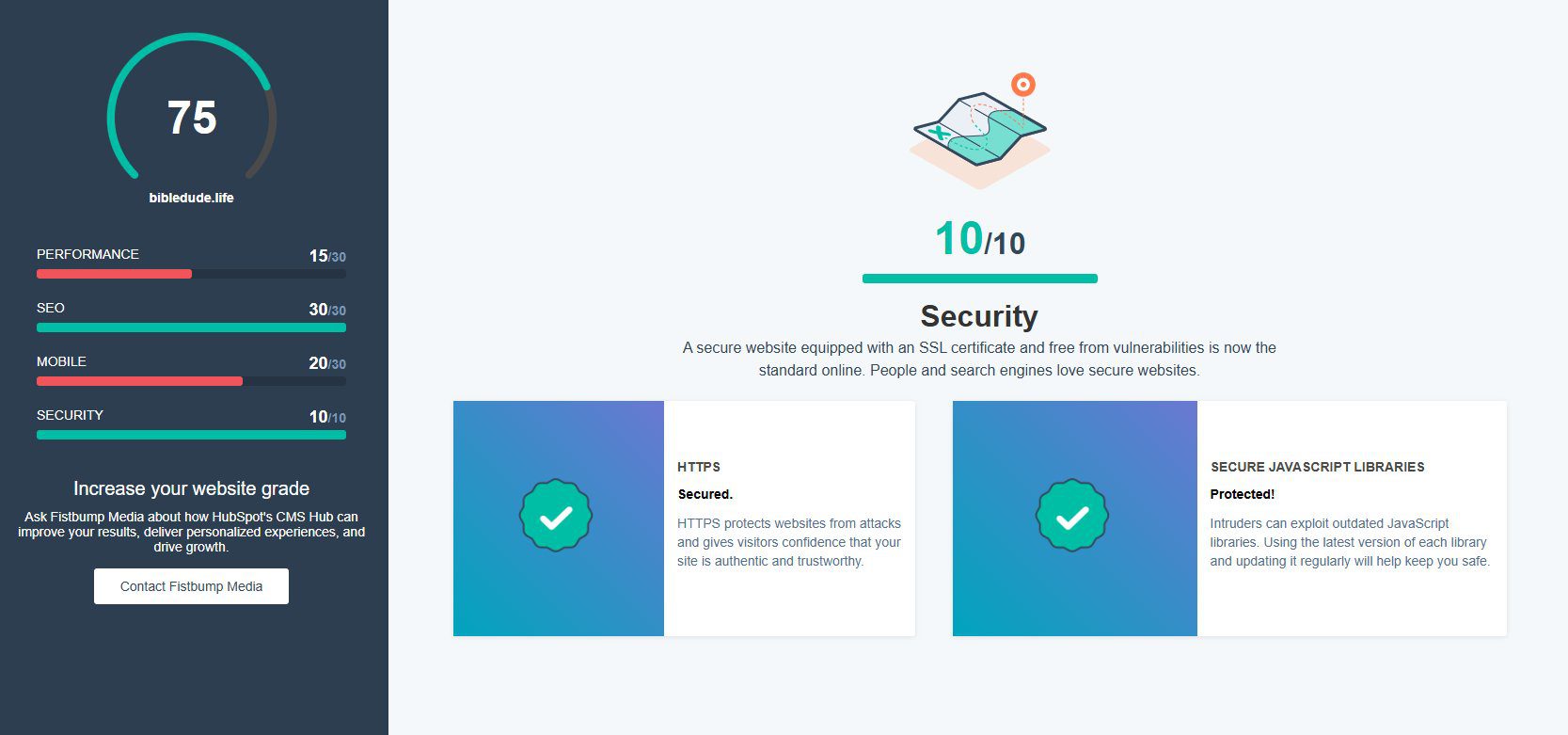
Security is worth 10 of your 100 points and checks two things: whether your site is running on HTTPS (the padlock in the browser bar), and whether your JavaScript libraries are up to date. Outdated JavaScript libraries are a common entry point for malware.
My blog scored 10/10 here — HTTPS is active and the JavaScript libraries are current. This is the easiest category to get right if you’re on managed hosting, since SSL is typically included and plugin/library updates are handled as part of maintenance.
If your Security score is low: Don’t sit on this one. A vulnerable site can be taken down or compromised faster than you’d expect. Our security and malware service gets you protected quickly, and our hosting plans keep you protected on an ongoing basis.
“What Should I Do Next?”
At the bottom of your grader results, you’ll find a “What Should I Do Next?” section that shows your specific failing metrics alongside the targets and recommendations for each one. This is your action list.
Work through it in priority order: Security first if it’s low (don’t wait on this), Performance next if your load time is significantly above 5.3 seconds, then Mobile, then any SEO gaps.
If you’re not sure which issues to tackle yourself versus hand off to someone else, that’s an easy conversation. Most of the technical issues the grader identifies are things we handle for clients regularly — and knowing what’s wrong is half the battle.
Haven’t Graded Your Site Yet?
If you landed on this post without having run your site through the grader yet, do that first. It takes about 30 seconds and gives you a personalized breakdown of exactly where your site stands right now.
Get your free website grade here.
Once you have your score, come back to this post and find the section that matches your lowest category. That’s your starting point.
And if you want a second set of eyes on your results, just reply to the email you received after grading — I read every one.
by Dan King | Dec 31, 2025 | blogging strategy, business strategy, fistbump media updates, publishing strategy
AI is powerful. It’s also loud.
New tools appear constantly. Promises of speed, scale, and shortcuts fill social feeds and inboxes. Advice is everywhere, and much of it conflicts. For many people, the result isn’t excitement. It’s pressure. A quiet sense that they’re falling behind if they don’t adopt everything immediately.
If that feels familiar, you’re not alone.
The challenge most people face right now isn’t access to AI. It’s clarity. Knowing how to use these tools thoughtfully, responsibly, and in ways that actually support their goals.
That’s why we built AI Labs.
The Problem Isn’t AI. It’s How We’re Being Taught to Use It.
AI itself isn’t the issue. The way it’s often presented is.
Much of the conversation around AI focuses on hacks, prompts, and tricks. Tools are treated like shortcuts that can replace thinking, creativity, or experience. The emphasis is on speed and output, not understanding.
The problem with that approach is that tools change constantly. What works today may be irrelevant next month. When people are taught what to click without learning how to think, they become dependent on systems they don’t fully understand.
That kind of learning doesn’t build confidence. It builds fragility.
Why Education Matters More Than Tools
Tools will continue to evolve. That’s a given.
What lasts is the ability to think clearly, ask better questions, and make informed decisions. Education creates that foundation. It helps people understand not just how to use AI, but when to use it, when not to, and why.
AI is most helpful when it supports human judgment, creativity, and discernment. It should amplify thinking, not replace it.
That belief sits at the center of everything we’re building with AI Labs.
What We Mean by “Labs”
We intentionally chose the word Labs.
AI Labs are not about polished performance or perfect output. They’re environments for experimentation, reflection, and learning. They’re places to test ideas, explore possibilities, and gain clarity before committing to a direction.
Labs assume that mistakes are part of the process. They create space to learn through use, not pressure. The goal isn’t speed or volume. It’s understanding.
How the Labs Are Structured
Each Lab follows the same simple progression, designed to meet people where they are.
- Membership offers an ongoing environment for learning, experimentation, and shared frameworks. It’s a place to build familiarity and confidence over time.
- Blueprints are focused, guided sessions designed to bring clarity to a specific idea or challenge. They help people move from uncertainty to direction.
- Accelerators are short-term, hands-on intensives for those who are ready to apply what they’ve learned in a more concentrated way.
This structure isn’t about pushing people forward faster. It’s about aligning depth with readiness.
Who AI Labs Are For
AI Labs are designed for people who want to use AI thoughtfully, not just quickly.
→ Writers and Authors
For writers and authors, AI can be a powerful thinking partner. It can help explore ideas, test concepts, clarify structure, and surface questions worth answering.
Our Author Lab is focused on helping writers gain clarity around their ideas and direction, especially early in the process. It’s for people who want to think better about what they’re creating, not hand their voice over to a machine.
Tools like our Book Idea GPT are examples of how AI can support this kind of exploration by helping writers evaluate ideas before committing months of work to them.
→ Entrepreneurs and Builders
For entrepreneurs, AI can support clearer thinking around offers, messaging, and strategy. Used well, it helps reduce noise and sharpen focus.
Our Entrepreneur Lab, which is coming soon, is being built for people who want to use AI to support decision-making and strategic clarity, not chase every new tool that appears.
Resources like the AI Starter Kit exist as practical on-ramps for people who want to begin exploring AI with intention and confidence.
How AI Labs Connect to the Academy
AI Labs are experiential by design. They emphasize learning through use and reflection.
The Academy is where more structured courses live. Over time, new courses will expand on the ideas explored in the Labs, allowing people to learn at different depths and paces.
Together, they create a learning ecosystem that’s flexible, intentional, and built to adapt as tools continue to change.
What We’re Hoping to Build Long-Term
Our goal with AI Labs isn’t to keep up with trends. It’s to create a steady place for thoughtful learning in the middle of a fast-moving landscape.
We want to build:
- A counterweight to hype-driven AI culture
- A space where discernment is valued
- A community focused on clarity rather than shortcuts
- Learning that evolves alongside the tools, not behind them
This is a long-term commitment to education, not a momentary response to buzz.
AI Is a Tool. Learning Is the Advantage.
AI will continue to change. New capabilities will emerge. Tools will improve.
The real advantage will belong to those who know how to think with these tools wisely.
AI Labs exist to help people build that confidence and clarity, so they can use AI as a support for meaningful work, not a source of pressure or confusion.
The goal isn’t to use AI more. It’s to use it more wisely.